RONIN Unlock Guide
TSUKI EI ZAN RONIN currently uses a free early access code. This guide explains how to request your unlock code and how to activate the application.
Step 1 — Open the Unlock screen
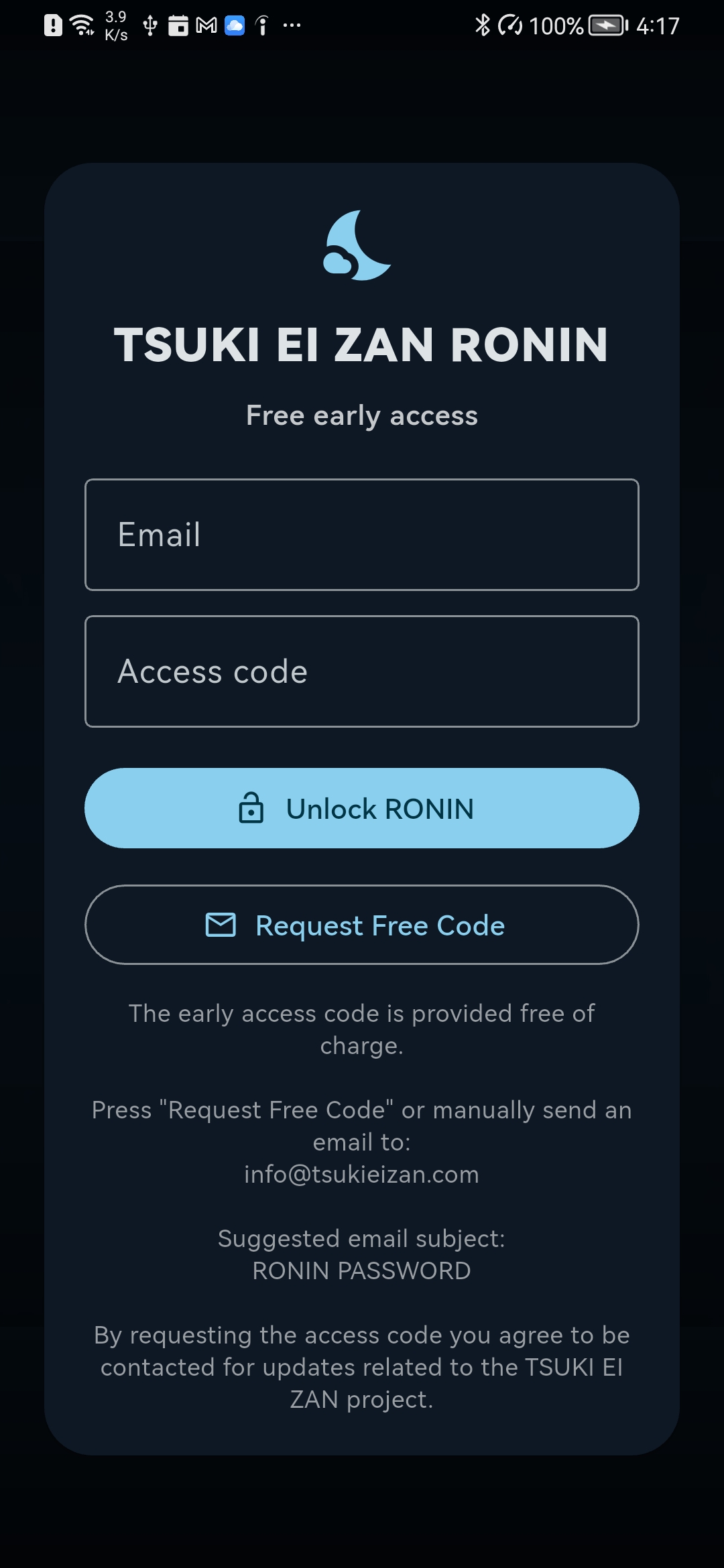
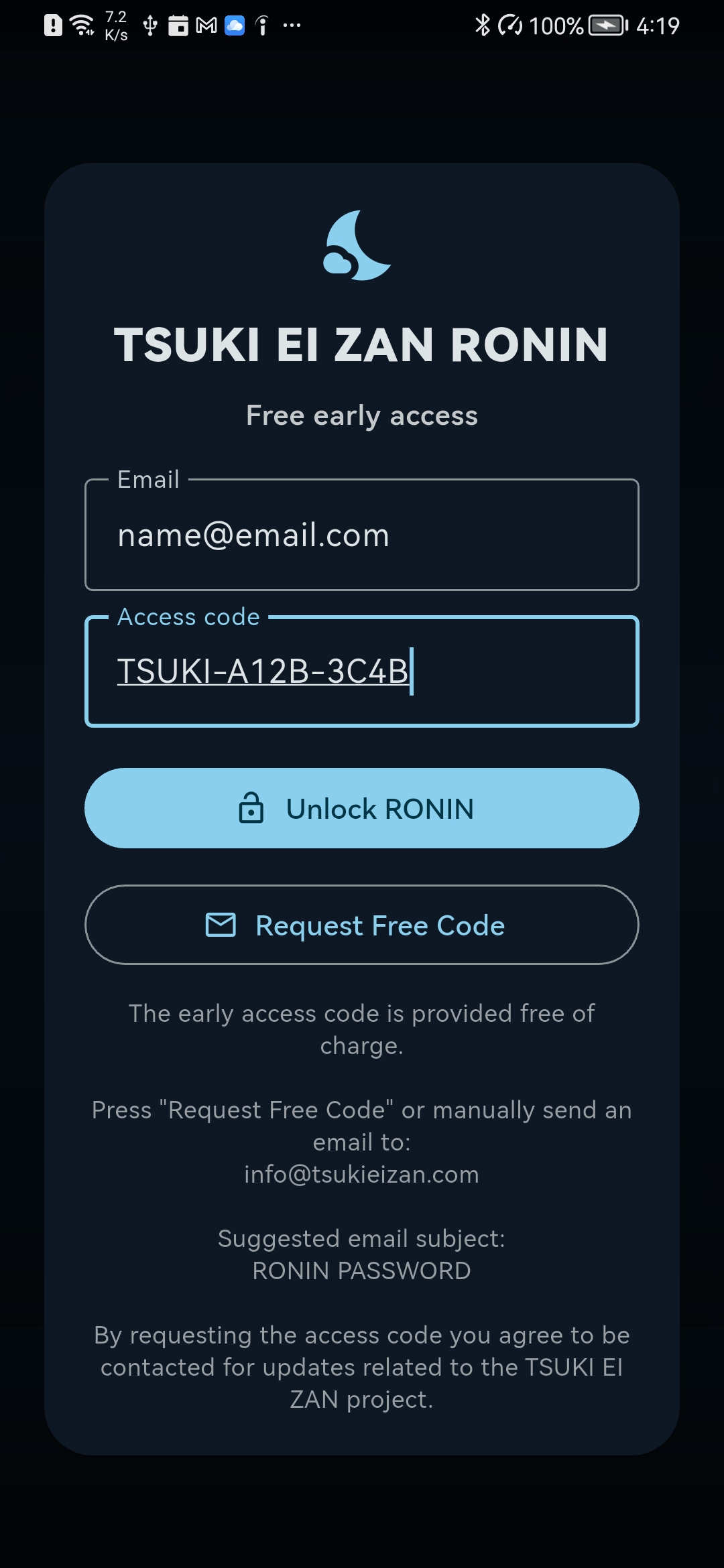
When RONIN starts for the first time, you will see the free early access screen. You can leave the email field empty, or insert your email before requesting the code.
Step 2 — Request the free code without typing an email
If you press Request Free Code without inserting an email address, RONIN will prepare a generic email request. In this case, the email address used to send the message will be considered as your reference email.
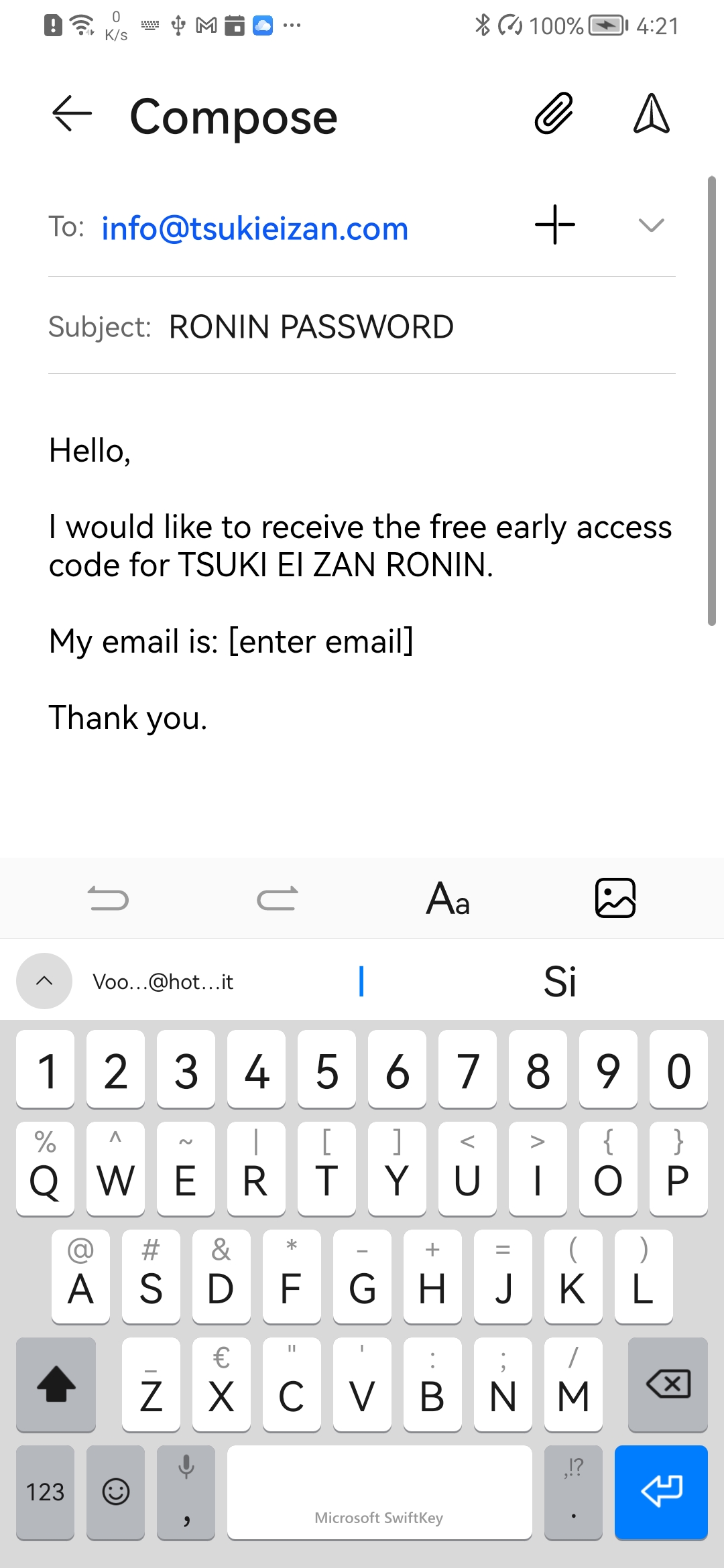
Step 3 — Request the code with your email already inserted
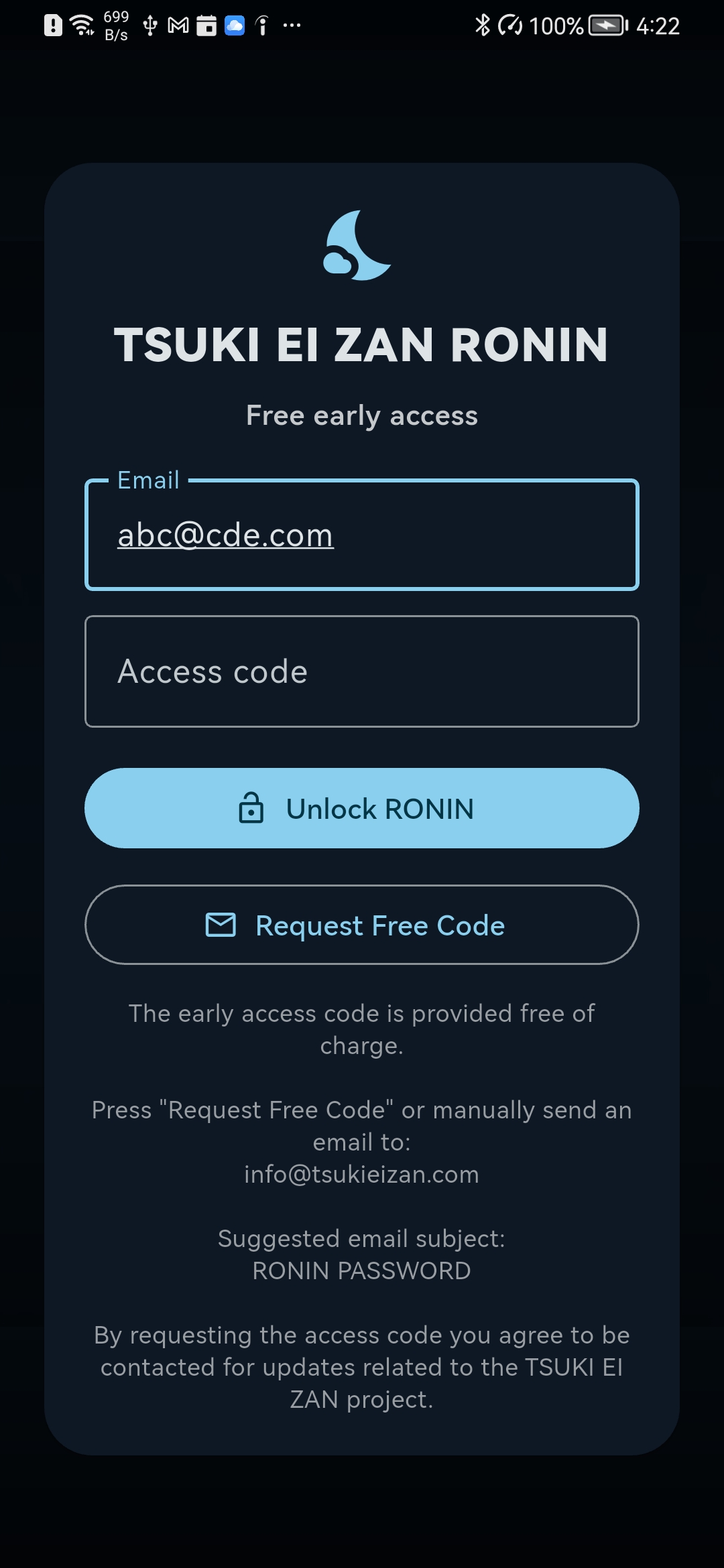
If you type your email address in the first field before pressing Request Free Code, RONIN will include that email inside the automatic request message. This is the recommended method.
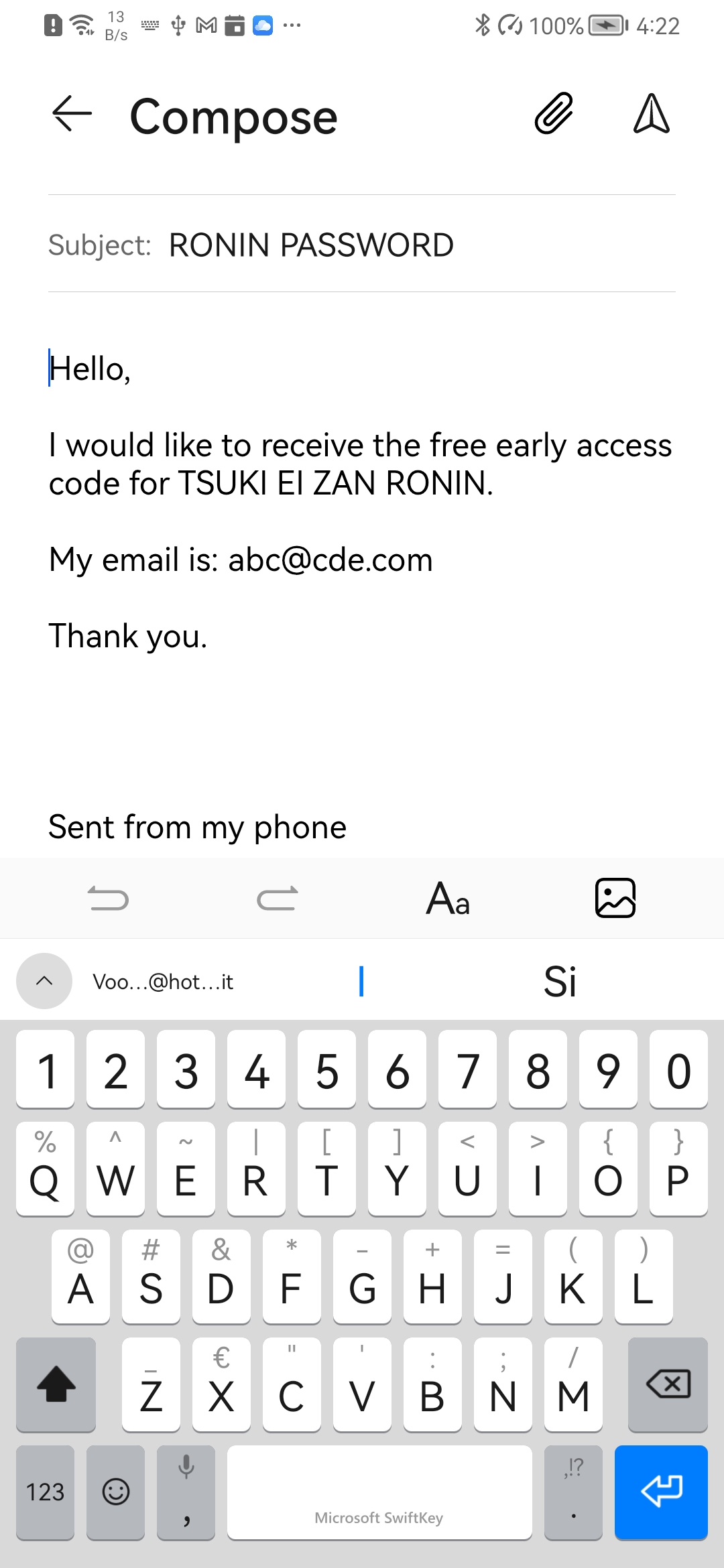
Step 4 — Send the email request
Check that the email is addressed to info@tsukieizan.com and that the subject is RONIN PASSWORD. Then send the message using the send button of your mail application.
Step 5 — Enter the unlock code
After receiving your free early access code, return to RONIN. Insert your email address and the access code, then press Unlock RONIN.
If the email request does not open
If your phone does not have a mail app configured, or if the automatic email request does not work, simply send a normal email manually to:
info@tsukieizan.com
Subject:
RONIN PASSWORD
Message:
I would like to receive the free early access code for TSUKI EI ZAN RONIN.